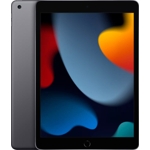
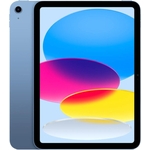
Google Pixel Tablet - 128 GB - Green

The Google Pixel Tablet is powered by the Tensor G2 processor, handling apps, games, browsing, and...

Currently unavailable

Currently out of stock

This product is not available at the moment. Check back later or explore other options below.

Similar alternatives

Product Information

Full details

The Google Pixel Tablet is designed for anyone seeking a versatile device that seamlessly transitions between entertainment, productivity, and smart home control. It offers a brilliant 11-inch display and powerful performance thanks to the Tensor G2 processor. The included Charging Speaker Dock transforms the tablet into a smart home hub. However, please note that the power cable adapter is missing.

All features

ColourGreen
WiFi StandardWi-Fi 6
Internal Storage Capacity128 GB
Operating SystemAndroid
OSAndroid
Model Part NumberGA04754-GB
Mobile Device Battery Capacity27 Wh
BrandGoogle

Extended Product Information

FAQs

What is the battery life of the Google Pixel Tablet?

The Google Pixel Tablet has a battery life of up to 12 hours.

Does the Google Pixel Tablet have a headphone jack?

No, the Google Pixel Tablet does not have a headphone jack.

Can I expand the storage on the Google Pixel Tablet?

No, the Google Pixel Tablet does not have a microSD card slot for expandable storage.

What is Hub Mode?

Hub Mode transforms the tablet into a smart display when docked, providing a digital photo frame, smart home controls, and hands-free assistance.

What is the resolution of the Google Pixel Tablet's display?

The display has a resolution of 2560 x 1600 pixels.

Does the tablet come with a stylus?

No, a stylus is not included.

Can I make phone calls with the Google Pixel Tablet?

No, the Google Pixel Tablet doesn't have a mobile network connection and doesn't support phone calls directly, but you can make calls through apps like Google Meet or other VoIP services.

Troubleshooting

Tablet won't turn on.

Ensure the tablet is charged. Try holding the power button for 10 seconds to reset.

Poor Wi-Fi connection.

Move closer to your Wi-Fi router or reset your router.

Charging Speaker Dock not working.

Make sure the dock is plugged in and the tablet is properly connected.

Apps crashing or freezing.

Close the app and try restarting it. Ensure the app is updated.

Google Assistant not responding.

Make sure the microphone is enabled and check your internet connection.

Pros and Cons

Pros

  • Versatile functionality with tablet and smart home hub capabilities.
  • Excellent display quality for immersive viewing experiences.
  • Powerful processor for smooth multitasking and app performance.
  • Seamless integration with Google services and other Pixel devices.
  • Includes a Charging Speaker Dock for enhanced audio and smart home features.
  • Chromecast built-in for easy media streaming.

Cons

  • Power cable adapter is missing.
  • Limited internal storage capacity (128 GB) may not suit all users.
  • Dependence on the Charging Speaker Dock for full smart home functionality.
  • No mobile network connection.
  • The tablet does not have a fingerprint reader.
  • May be expensive compared to other tablets on the market.

Setup, Compatibility & Care

Setup:

  1. Power on the Google Pixel Tablet and follow the on-screen instructions to set up your Google account and connect to Wi-Fi.
  2. Place the tablet on the Charging Speaker Dock to activate Hub Mode and enable smart home features.
  3. Download and install the Google Home app to control your smart home devices.
  4. Familiarize yourself with the user interface and explore the various settings and features.

Compatibility:

The Google Pixel Tablet is compatible with a wide range of apps available on the Google Play Store.

It seamlessly integrates with other Google devices and services, such as Google Assistant, Chromecast, and Google Photos.

It is also compatible with a variety of smart home devices that work with Google Assistant.

Care:

  • Clean the screen with a soft, lint-free cloth.
  • Avoid exposing the tablet to extreme temperatures or direct sunlight.
  • Protect the tablet from drops and impacts using a case.
  • Do not use harsh chemicals or abrasive cleaners.